This walkthrough installs a working Immich stack on a small VPS with machine learning disabled. You still get uploads, albums, and browsing. You do not get face clustering, CLIP search, or OCR until you add the ML service later on a bigger machine.
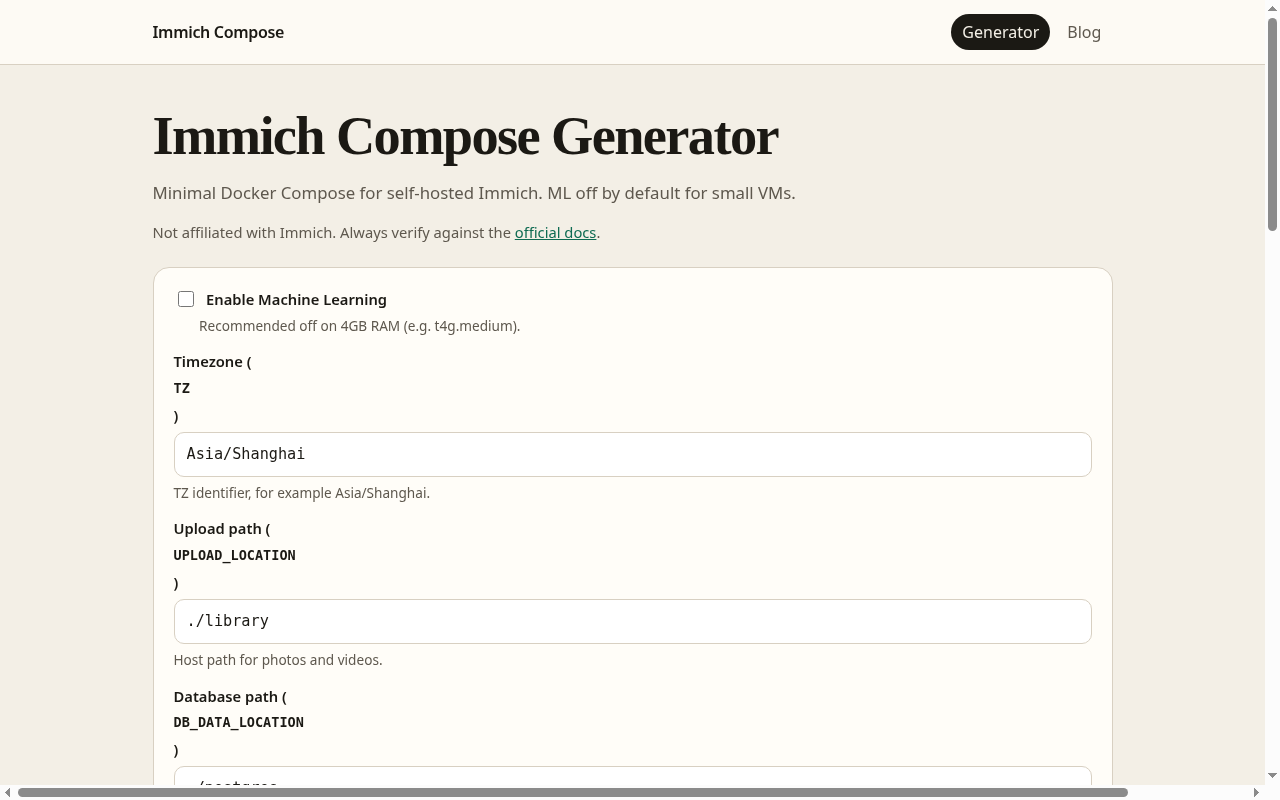
Generate docker-compose.yml and the env file at https://immichcompare.pages.dev. Leave Enable Machine Learning unchecked.
Why turn ML off on 4 GB
On a 4 GiB host, the Immich machine-learning container competes with Postgres, Redis, and the server for RAM. Leaving ML out keeps the stack predictable:
| Still works | Needs ML (skipped here) |
|---|---|
| Web UI, mobile sync, albums | Face recognition |
| Upload + timeline | Smart / CLIP search |
| Sharing links (after HTTPS) | OCR |
Official docs: Immich installation.
1. Generate compose + env files
Open the site generator: https://immichcompare.pages.dev
Leave Enable Machine Learning unchecked. Set:
TZ→Asia/Shanghai(or your zone)- Upload / DB paths as needed (defaults are fine for a first box)
- Host port →
2283 - Database password → letters and digits only (
A-Za-z0-9)
Download docker-compose.yml and the env file. Rename the env file to .env.
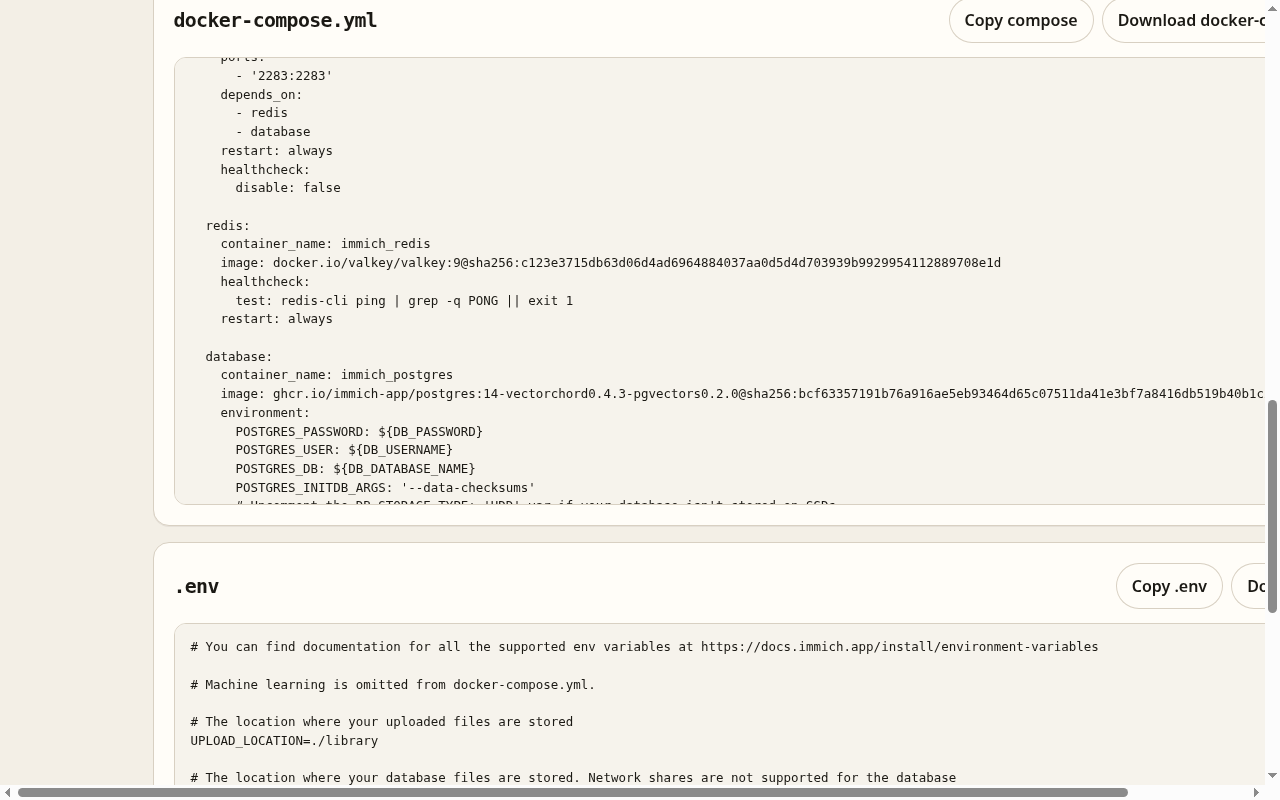
The preview should list immich-server, redis, and database only — no immich-machine-learning service.
2. Place files on the host
SSH into Ubuntu, then:
mkdir -p ~/immich-app && cd ~/immich-app
# copy docker-compose.yml and .env into this directory
docker compose config
Use the Compose plugin (docker compose), not the old docker-compose binary.
3. Start the stack
docker compose up -d
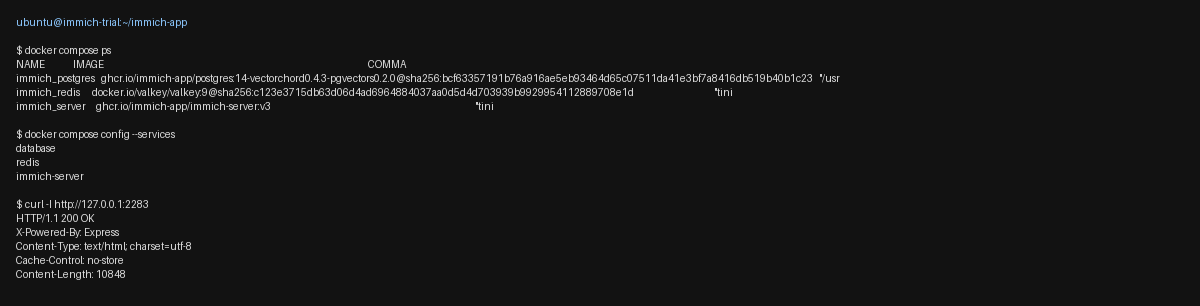
docker compose ps
curl -I http://127.0.0.1:2283
You should see three running services: immich_server (healthy), immich_redis, and immich_postgres.
4. Create the first admin user
Open http://<host-ip>:2283 in a browser and complete the first-time setup. Prefer not exposing port 2283 on the public internet long-term — put HTTPS in front next (Immich Behind HTTPS: Nginx or Caddy Reverse Proxy Basics).
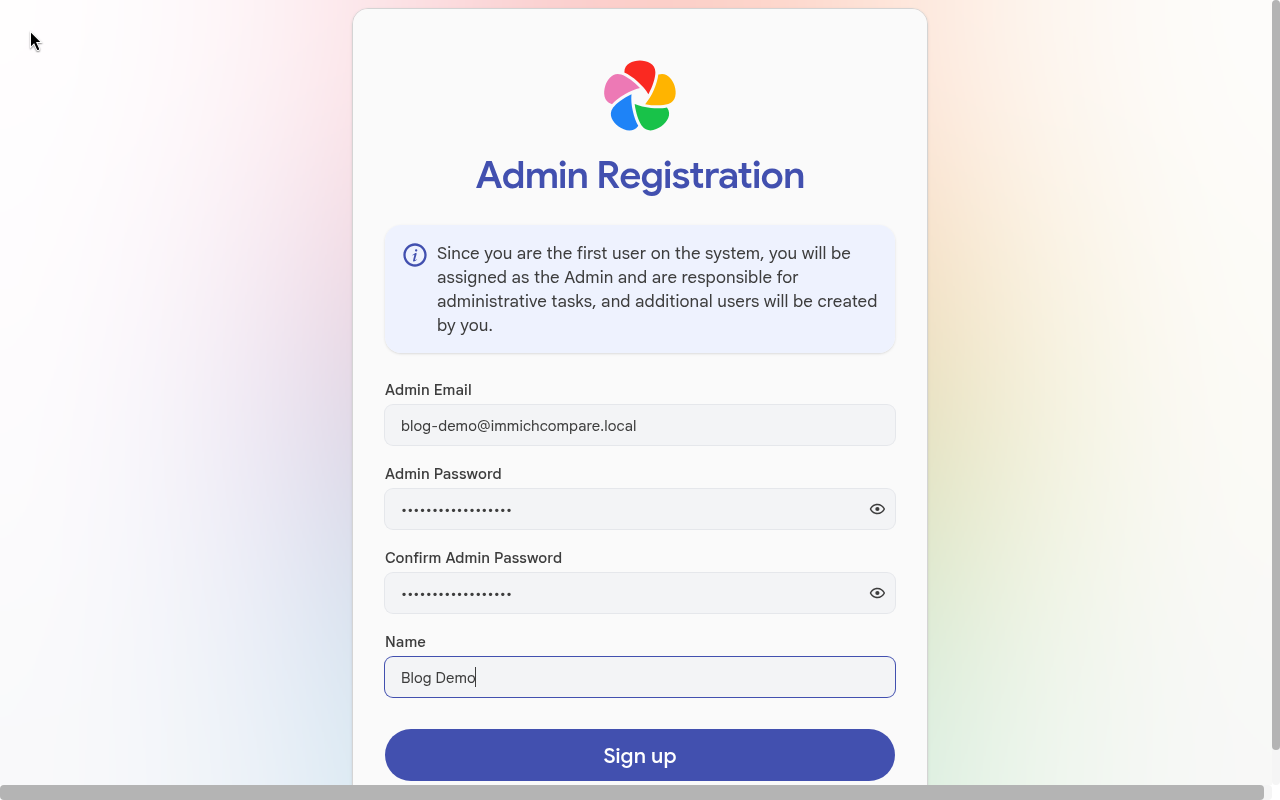
After registration, the home timeline is empty until the first upload.
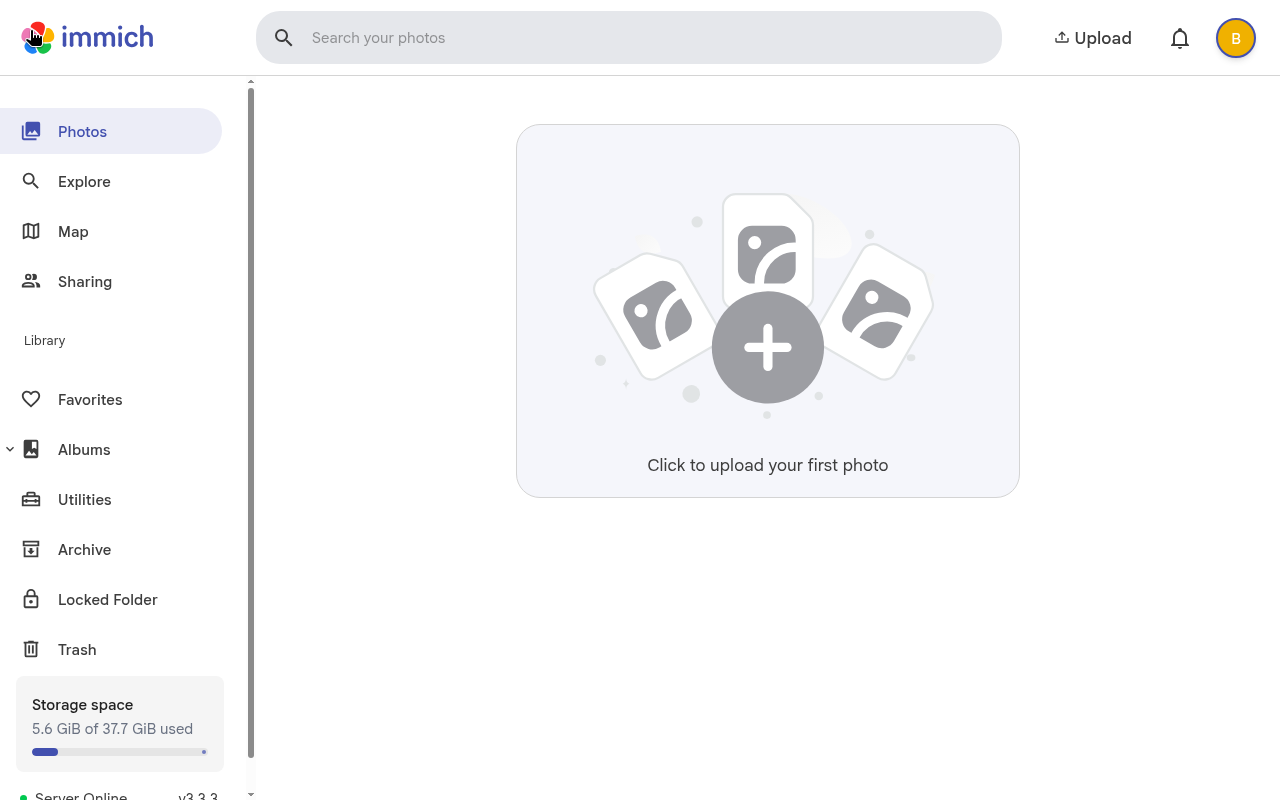
5. Smoke test: upload one photo
Upload a single image from the web UI. Then confirm it landed under your UPLOAD_LOCATION on the host (default ./library relative to the compose directory).
ls -la ./library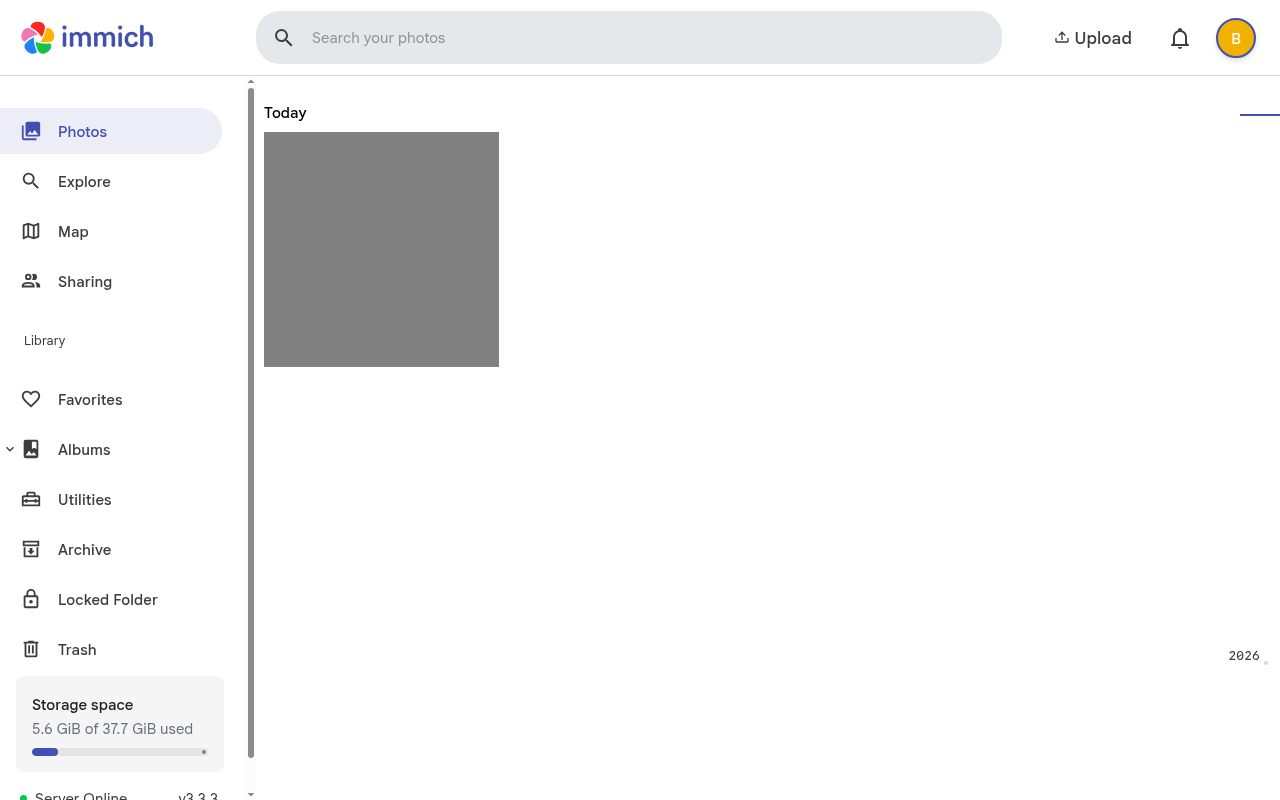
Common footguns
- Old Compose CLI: install the Docker Compose plugin; avoid snap-only Docker if it breaks networking.
- DB password charset: stick to
A-Za-z0-9for the generated password. - Do not put Postgres on NFS. Keep
DB_DATA_LOCATIONon local disk. - Wrong upload path: Immich verifies
<UPLOAD_LOCATION>/*/.immichon boot. If the server exits with folder-check errors, follow Immich Upload Fails: Fix Storage Paths, Permissions, and Disk Space.
Next
- Put Immich behind HTTPS: Immich Behind HTTPS: Nginx or Caddy Reverse Proxy Basics.
- Move the library to a larger disk: Immich External Storage and Disk Growth Without Losing Your Library.
- Back up
UPLOAD_LOCATIONand the database before any upgrade: Upgrade Immich Safely Without Breaking Your Photo Library.